
How TatMe.id Works
Get one permanent link and one QR code for your TatMe.id mini-site. Put them on your résumé, website, or printed materials. Update the page whenever you like.
From your first page to your first scan
-
 Step 1
Make your page
Add your name, bio, and links. You can also share your résumé or life events. Preview your page before sharing it.
-
 Step 2
Get your code
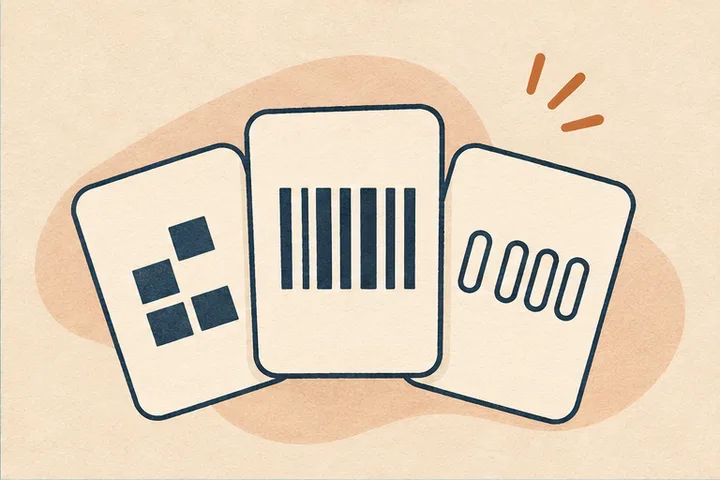
Open My Codes to copy your permanent link or download its QR code. Choose PNG for documents and websites or SVG for print and design. Your barcode and lookup number are there too.
Find a page by number -
 Step 3
Put your code where people will see it
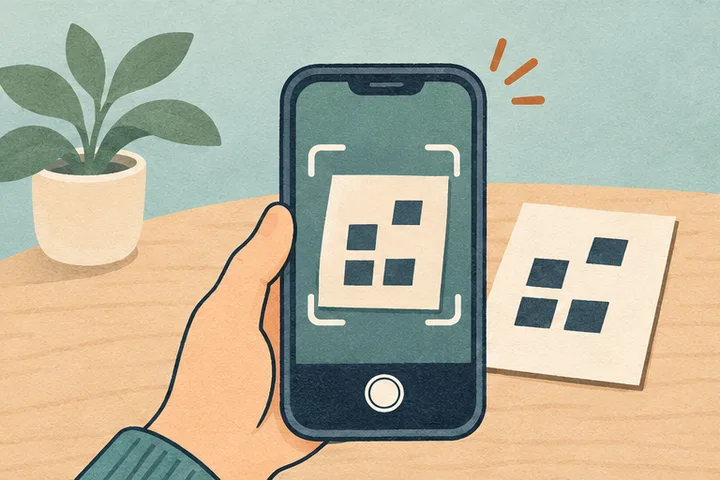
Add the QR image to your résumé, PDF, website, business card, flyer, or product packaging. Keep the white border visible and scan the finished version with your phone.
-
 Step 4
Update your page anytime
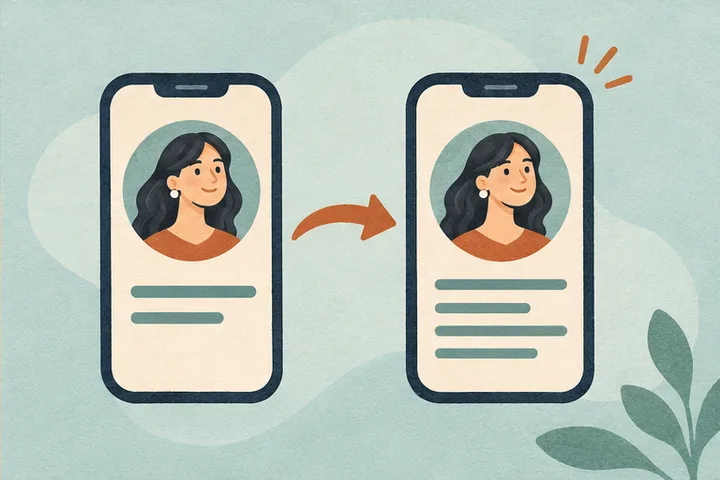
Update your résumé, switch shops, or change your public handle. The QR code and permanent link you already shared will still lead to the current mini-site.